
Download BlueScreenView – blue screen, crash analysis, minidump, driver troubleshooting, system diagnostics
Overview
BlueScreenView is a specialized diagnostic tool designed for Windows users who encounter the dreaded 'Blue Screen of Death' (BSOD). Its primary function is to analyze minidump files—small memory dumps generated automatically by the Windows operating system during system crashes—and present the crash data in a clear, structured table. This application enables users to identify the root causes of system instability by pinpointing the specific drivers or system modules that may have triggered the crash. The target audience includes advanced users, IT professionals, and system administrators who require detailed insights into system failures for troubleshooting and maintenance purposes.
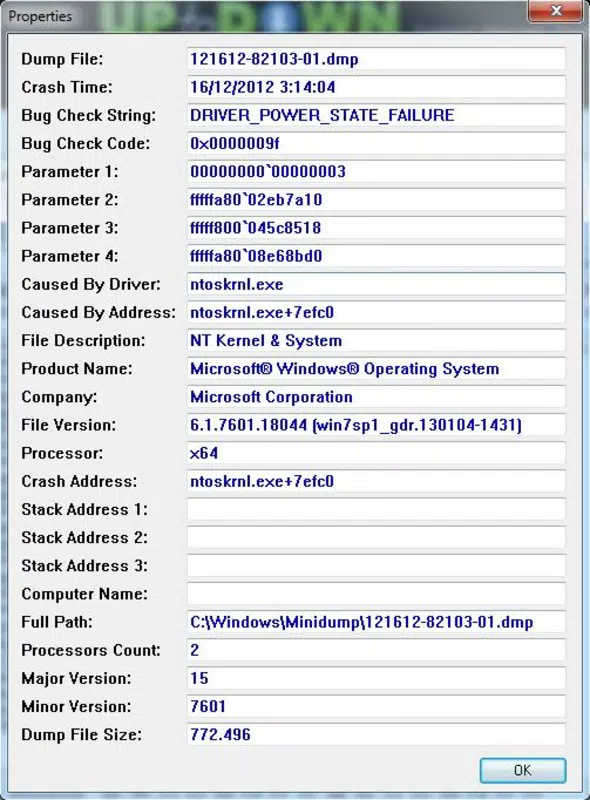
By displaying crash details such as the Bug Check Code, timestamp, and associated driver information—including filename, product name, file description, and version—BlueScreenView simplifies the complex process of post-crash analysis. Real-world use cases include diagnosing recurring crashes after software updates, identifying faulty hardware drivers, or resolving conflicts between third-party applications and system components. The tool plays a vital role in the Windows system utility ecosystem by offering a lightweight, efficient solution for users seeking deeper insight into system reliability issues without relying on more complex debugging environments.
Developed by NirSoft, a well-known provider of lightweight, no-installation utilities, BlueScreenView benefits from a reputation for reliability and minimal resource usage. The developer did not provide additional technical details about the application’s internal architecture or support lifecycle. However, its continued availability and regular updates suggest ongoing maintenance and user support. The tool’s free availability further enhances its accessibility for both personal and professional use.
Key Features & Functionality
- Minidump File Scanning – Automatically scans all available minidump files across the system, eliminating the need for manual file location.
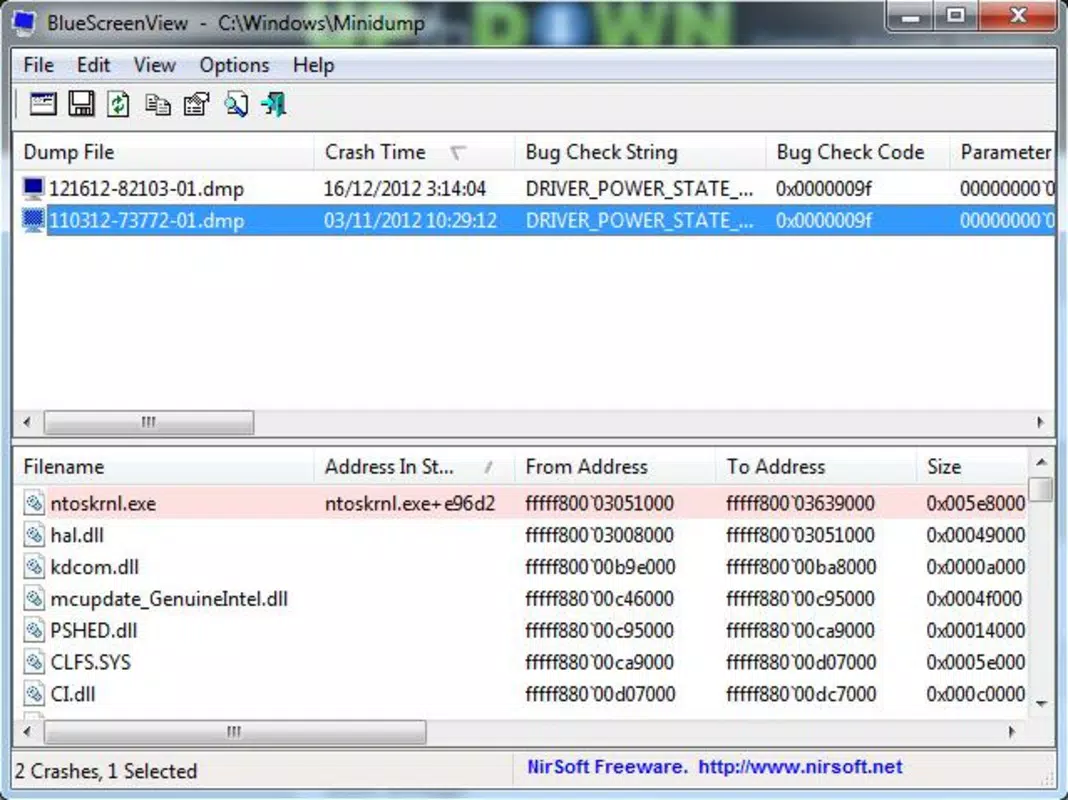
- Comprehensive Crash Table – Displays crash events in a single, easy-to-read table with key data including crash timestamp, Bug Check Code, and crash parameters.
- Driver and Module Details – Provides full information about the driver or module involved in each crash, including file name, product name, description, and version.
- Stack Trace Analysis – Highlights drivers whose memory addresses appear in the crash stack, helping users identify the most likely culprits.
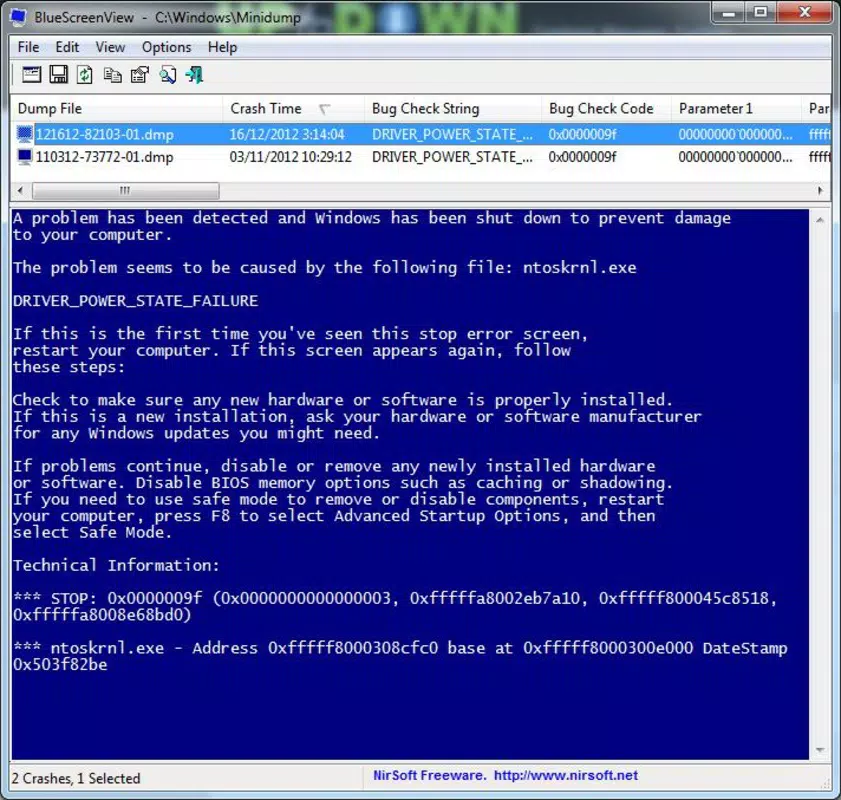
- Two-Pane Interface – Separates crash summaries from detailed driver information, enabling efficient navigation and focused analysis.
- Lightweight and Portable – Requires no installation and operates directly from a single executable file, making it ideal for temporary or emergency diagnostics.
For example, if a user experiences frequent BSODs after installing new graphics drivers, BlueScreenView can quickly identify the specific driver file involved and display its version and product name. This enables targeted action—such as rolling back the driver or contacting the vendor—without requiring advanced debugging knowledge. Similarly, in enterprise environments, IT teams can use the tool to standardize crash reporting across multiple machines, improving system uptime and reducing troubleshooting time.
Interface, UX & Performance
BlueScreenView features a straightforward, no-frills interface optimized for functionality over aesthetics. The layout is divided into two main panes: the upper pane lists all detected crashes with essential metadata, while the lower pane displays detailed information about the drivers loaded during each crash. Navigation is intuitive, relying on simple clicking and scrolling, with no complex menus or configuration steps.
The visual style is minimalistic, focusing on readability with clear text formatting and color-coded indicators for suspected drivers. This design ensures users can quickly scan results and identify critical entries. Responsiveness is efficient, with the application loading and processing minidump files rapidly, even when multiple crashes are present. Although the developer did not list formal performance metrics, the tool’s low file size of 1.1 MB suggests optimized resource usage.
Stability is a key strength—users can run the application repeatedly without system impact. It operates without requiring administrative privileges in most cases, though access to minidump files may require elevated permissions depending on system configuration. The application does not introduce background processes or consume significant CPU or memory during operation, making it suitable for use on older or low-resource systems.
Platform Compatibility & Technical Requirements
BlueScreenView is designed exclusively for the Windows operating system. It supports all modern Windows versions, including Windows 10 and Windows 11, though the developer did not specify exact minimum OS requirements. The application is distributed as a single executable file with a file size of 1.1 MB, making it highly portable and easy to deploy across different machines.
Compatibility information was not fully disclosed, but the tool’s lightweight nature and lack of installation requirements suggest broad compatibility with standard Windows environments. No additional software or runtime dependencies are required, and the application runs directly from the downloaded file. Users should ensure they have access to the minidump folder, typically located at C:\Windows\Minidump, for full functionality.
Pros and Cons
Pros
- Free to download and use with no hidden costs.
- Lightweight and portable—no installation required.
- Efficiently scans and analyzes minidump files across the system.
- Clear, structured display of crash data for quick diagnosis.
- Highlights suspected drivers using stack trace analysis.
- Developed by a trusted source with a history of reliable utilities.
Cons
- Requires users to have basic understanding of system crashes and drivers.
- Does not provide automated repair or driver update suggestions.
- Limited to Windows platform—no support for macOS or Linux.
- Interface is functional but lacks modern visual polish.
- May require elevated permissions to access minidump files.
FAQ
Is BlueScreenView safe to use?
Yes, BlueScreenView is a legitimate tool developed by NirSoft, a trusted provider of system utilities. It does not install malware or modify system files.
Can I use BlueScreenView on Windows 11?
Yes, BlueScreenView is compatible with Windows 11, as it is designed for modern Windows systems. No specific version requirements were listed.
Do I need to install BlueScreenView?
No, the application is portable and runs directly from the downloaded executable file. No installation or registry changes are required.
Where are minidump files stored?
Minidump files are typically stored in the C:\Windows\Minidump folder. BlueScreenView scans this location by default.
Does BlueScreenView fix system crashes?
No, BlueScreenView does not fix crashes. It only analyzes crash data to help users identify the likely cause. Remediation requires user action, such as updating or removing drivers.
Final Thoughts
BlueScreenView stands out as a powerful yet accessible tool for diagnosing system crashes on Windows. Its ability to parse and present minidump data in a clear, actionable format makes it an essential utility for anyone dealing with system instability. While it requires some technical understanding to interpret results, its straightforward interface and no-installation design lower the barrier to entry for advanced users and IT professionals alike.
For users seeking to resolve recurring blue screens, improve system reliability, or gain deeper insight into crash causes, BlueScreenView delivers real value. Its free availability, minimal footprint, and proven track record from NirSoft make it a standout in the system utilities category.
Download BlueScreenView now


